
Introducing ProtoPie

Getting Started

Making Your First Prototype

ProtoPie Ecosystem

ProtoPie Studio Interface

Import

Getting Started

Importing From Adobe XD

Importing From Figma

Importing From Sketch

ProtoPie Genie

Basic Elements

Containers

Devices

Layers

Preview Window

Scenes

Scroll/Paging

Shortcuts

System Status Bar

Triggers & Responses

Easing

Annotations

Responses

Timelines

Triggers

Formulas

Functions

Getting Started

Layer Properties

Syntax

Formulas Use Cases

Variables

Getting Started

Predefined Variables

Variables Use Cases

AI

AI Interaction Creation

AI Document Q&A

Getting Started

AI Panel Interface

Tips for Best Results

Auto Layout

Auto Layout Properties

Getting Started

Components

Component Guides

Editing Components

Getting Started

Nested Components

Send & Receive Messages

Interaction Libraries

Getting Started

Managing Interaction Libraries

Managing Library Members

Voice Prototyping

Getting Started

Listen Response

Speak Response

Use Cases

Voice Command Trigger

Connecting Devices

Connecting blokdots

Connecting Mobile Devices

ProtoPie Cloud

Getting Started

Managing Prototypes

Managing Storage

Sharing Prototypes

ProtoPie Player

Testing Prototypes

Managing Fonts

Offline Testing

ProtoPie Player for Wear OS

Teams

Editors & Viewers

Getting Started

Onboarding Your Team

Projects

Team Owner & Team Admin

Handoff

Creating Interaction Recordings

Getting Started

Managing Interaction Recordings

Recording Page

User Testing

Creating Test Rooms

External Integrations

Getting Started

Managing Test Sessions

Test Results & Analysis

User Testing on ProtoPie Cloud

ProtoPie Connect

API Plugin

Arduino Plugin

blokdots Plugin

Connect Embedded

Custom Layer Integrations

Custom Plugins

Gamepad Plugin

Getting Started

IFTTT Plugin

Logitech G29 Steering Wheel Plugin

Testing Prototypes

Feature Comparison

Unity Plugin

ProtoPie Enterprise

Getting Started

Organization Settings

Service Admin

Single Sign-On (SSO)

Security

Access Control

Data Transit, Storage & Backup

Incident Response

Network & ProtoPie Player App Security

Overview

Physical Security

Risk Management

Menu

Introducing ProtoPie

Getting Started

Making Your First Prototype

ProtoPie Ecosystem

ProtoPie Studio Interface

Import

Getting Started

Importing From Adobe XD

Importing From Figma

Importing From Sketch

ProtoPie Genie

Basic Elements

Containers

Devices

Layers

Preview Window

Scenes

Scroll/Paging

Shortcuts

System Status Bar

Triggers & Responses

Easing

Annotations

Responses

Timelines

Triggers

Formulas

Functions

Getting Started

Layer Properties

Syntax

Formulas Use Cases

Variables

Getting Started

Predefined Variables

Variables Use Cases

AI

AI Interaction Creation

AI Document Q&A

Getting Started

AI Panel Interface

Tips for Best Results

Auto Layout

Auto Layout Properties

Getting Started

Components

Component Guides

Editing Components

Getting Started

Nested Components

Send & Receive Messages

Interaction Libraries

Getting Started

Managing Interaction Libraries

Managing Library Members

Voice Prototyping

Getting Started

Listen Response

Speak Response

Use Cases

Voice Command Trigger

Connecting Devices

Connecting blokdots

Connecting Mobile Devices

ProtoPie Cloud

Getting Started

Managing Prototypes

Managing Storage

Sharing Prototypes

ProtoPie Player

Testing Prototypes

Managing Fonts

Offline Testing

ProtoPie Player for Wear OS

Teams

Editors & Viewers

Getting Started

Onboarding Your Team

Projects

Team Owner & Team Admin

Handoff

Creating Interaction Recordings

Getting Started

Managing Interaction Recordings

Recording Page

User Testing

Creating Test Rooms

External Integrations

Getting Started

Managing Test Sessions

Test Results & Analysis

User Testing on ProtoPie Cloud

ProtoPie Connect

API Plugin

Arduino Plugin

blokdots Plugin

Connect Embedded

Custom Layer Integrations

Custom Plugins

Gamepad Plugin

Getting Started

IFTTT Plugin

Logitech G29 Steering Wheel Plugin

Testing Prototypes

Feature Comparison

Unity Plugin

ProtoPie Enterprise

Getting Started

Organization Settings

Service Admin

Single Sign-On (SSO)

Security

Access Control

Data Transit, Storage & Backup

Incident Response

Network & ProtoPie Player App Security

Overview

Physical Security

Risk Management

What is ProtoPie Connect?

ProtoPie Connect is an extension for ProtoPie Studio that allows you to prototype real-world scenarios involving multiple devices, displays, hardware, and APIs seamlessly. It comes with all ProtoPie plans, including the Free plan. Learn more about the different versions of Connect per price tier.

How to Get Started?

Download and install ProtoPie Connect to start building dynamic prototypes that go beyond traditional mobile interactions: Download ProtoPie Connect here.

How Prototypes Communicate in ProtoPie Connect

Communication between multiple devices connected via ProtoPie Connect occurs through Send and Receive messages. The same messaging system is used to pass information back and forth between scenes and components and to create interactions between two devices using ProtoPie Studio as a hub (connecting devices).

Using the Send response, you can send messages to prototypes or hardware devices. You need to use the Receive trigger for other prototypes to hear such messages and respond accordingly.

It is important that both Send and Receive are set up to use the same channel in ProtoPie Studio. For prototypes communicating through ProtoPie Connect, the channel must be "ProtoPie Connect/ Studio."
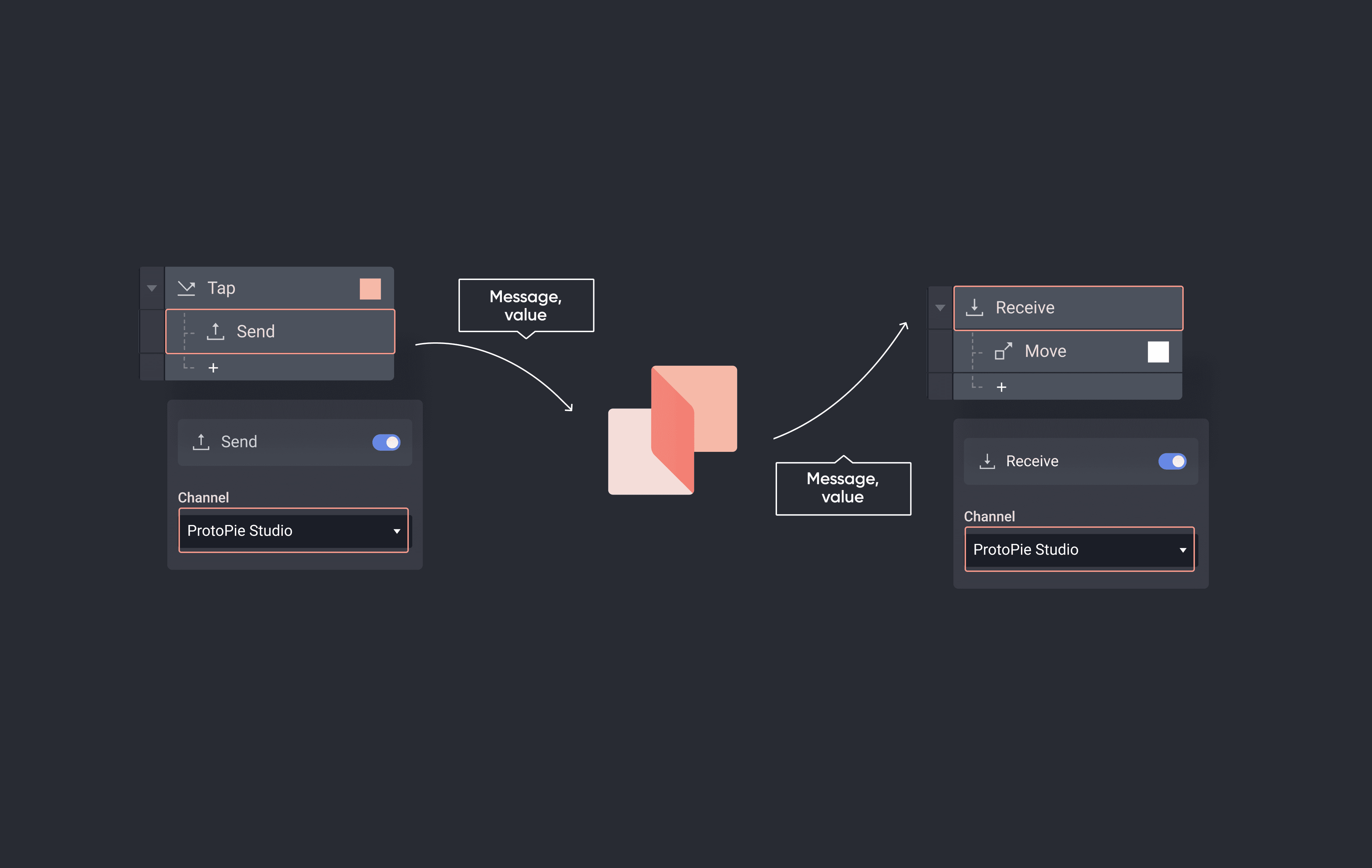

{'_type': 'localeString', 'en': 'protopie connect diagram', 'ja': 'protopie connect diagram', 'ko': 'protopie connect diagram', 'zh': 'protopie connect diagram'}

How ProtoPie Connect Works

At its core, ProtoPie Connect acts as a b communication server connecting multiple clients:

  • ProtoPie prototypes running on smart devices (iOS, Android)

  • ProtoPie prototypes running on web browsers on desktops

  • Hardware systems (e.g., Arduino, Logitech G29 steering wheel)

  • External services (e.g., IFTTT webhooks, public APIs)

The clients can communicate either locally, through a localhost server, or within a local area network (LAN). ProtoPie Connect listens on port 9981 to all the IP addresses of the machine on which it is running. You can also modify the active IP address on ProtoPie Connect by clicking on Network from the menu bar and selecting another IP address.

Let's take automotive as an example. In the following video, tapping a button on the center display triggers animations on the cluster and head-up display (HUD). This is possible thanks to the flexibility and power of ProtoPie Connect.

Connect Desktop vs. Connect Embedded

There are two different types of ProtoPie Connect:

  • Connect Desktop

  • Connect Embedded

Connect Desktop runs on macOS and Windows. It allows you to run multiple prototypes simultaneously and create immersive multi-screen experiences. It includes built-in plugins to integrate ProtoPie with external hardware devices and services, including Arduino and IFTTT. Enterprise plan users can also upload their own custom plugins to create even more unique digital experiences.

Learn more about Connect Desktop and its API, IFTTT, G29, Arduino, Gamepad, blokdots, Unity, and custom plugins.

As its name suggests, Connect Embedded is designed to run on embedded systems such as Raspberry Pi. It’s a standalone server application that runs in the terminal.

Connect Embedded is only available to Enterprise plan users. Learn more about Connect Embedded.

Complete Guide to ProtoPie Connect

{'_type': 'localeString', 'en': 'protopie connect free guide'}

ProtoPie School offers a comprehensive guide to ProtoPie Connect in 8 lessons. It starts with a refresher on Send & Receive, then dives into using ProtoPie Connect’s built-in plugins, including how to make your own plugins to integrate with just about anything with a screen — and beyond!
Enroll for free here.