Introducing ProtoPie

Getting Started

Making Your First Prototype

ProtoPie Ecosystem

ProtoPie Studio Interface

Import

Getting Started

Importing From Adobe XD

Importing From Figma

Importing From Sketch

ProtoPie Genie

Basic Elements

Containers

Devices

Layers

Preview Window

Scenes

Scroll/Paging

Shortcuts

System Status Bar

Triggers & Responses

Easing

Annotations

Responses

Timelines

Triggers

Formulas

Functions

Getting Started

Layer Properties

Syntax

Formulas Use Cases

Variables

Getting Started

Predefined Variables

Variables Use Cases

AI

AI Interaction Creation

AI Document Q&A

Getting Started

AI Panel Interface

Tips for Best Results

Auto Layout

Auto Layout Properties

Getting Started

Components

Component Guides

Editing Components

Getting Started

Nested Components

Send & Receive Messages

Interaction Libraries

Getting Started

Managing Interaction Libraries

Managing Library Members

Voice Prototyping

Getting Started

Listen Response

Speak Response

Use Cases

Voice Command Trigger

Connecting Devices

Connecting blokdots

Connecting Mobile Devices

ProtoPie Cloud

Getting Started

Managing Prototypes

Managing Storage

Sharing Prototypes

ProtoPie Player

Testing Prototypes

Managing Fonts

Offline Testing

ProtoPie Player for Wear OS

Teams

Editors & Viewers

Getting Started

Onboarding Your Team

Projects

Team Owner & Team Admin

Handoff

Creating Interaction Recordings

Getting Started

Managing Interaction Recordings

Recording Page

User Testing

Creating Test Rooms

External Integrations

Getting Started

Managing Test Sessions

Test Results & Analysis

User Testing on ProtoPie Cloud

ProtoPie Connect

API Plugin

Arduino Plugin

blokdots Plugin

Connect Embedded

Custom Layer Integrations

Custom Plugins

Gamepad Plugin

Getting Started

IFTTT Plugin

Logitech G29 Steering Wheel Plugin

Testing Prototypes

Feature Comparison

Unity Plugin

ProtoPie Enterprise

Getting Started

Organization Settings

Service Admin

Single Sign-On (SSO)

Security

Access Control

Data Transit, Storage & Backup

Incident Response

Network & ProtoPie Player App Security

Overview

Physical Security

Risk Management

Menu

Introducing ProtoPie

Getting Started

Making Your First Prototype

ProtoPie Ecosystem

ProtoPie Studio Interface

Import

Getting Started

Importing From Adobe XD

Importing From Figma

Importing From Sketch

ProtoPie Genie

Basic Elements

Containers

Devices

Layers

Preview Window

Scenes

Scroll/Paging

Shortcuts

System Status Bar

Triggers & Responses

Easing

Annotations

Responses

Timelines

Triggers

Formulas

Functions

Getting Started

Layer Properties

Syntax

Formulas Use Cases

Variables

Getting Started

Predefined Variables

Variables Use Cases

AI

AI Interaction Creation

AI Document Q&A

Getting Started

AI Panel Interface

Tips for Best Results

Auto Layout

Auto Layout Properties

Getting Started

Components

Component Guides

Editing Components

Getting Started

Nested Components

Send & Receive Messages

Interaction Libraries

Getting Started

Managing Interaction Libraries

Managing Library Members

Voice Prototyping

Getting Started

Listen Response

Speak Response

Use Cases

Voice Command Trigger

Connecting Devices

Connecting blokdots

Connecting Mobile Devices

ProtoPie Cloud

Getting Started

Managing Prototypes

Managing Storage

Sharing Prototypes

ProtoPie Player

Testing Prototypes

Managing Fonts

Offline Testing

ProtoPie Player for Wear OS

Teams

Editors & Viewers

Getting Started

Onboarding Your Team

Projects

Team Owner & Team Admin

Handoff

Creating Interaction Recordings

Getting Started

Managing Interaction Recordings

Recording Page

User Testing

Creating Test Rooms

External Integrations

Getting Started

Managing Test Sessions

Test Results & Analysis

User Testing on ProtoPie Cloud

ProtoPie Connect

API Plugin

Arduino Plugin

blokdots Plugin

Connect Embedded

Custom Layer Integrations

Custom Plugins

Gamepad Plugin

Getting Started

IFTTT Plugin

Logitech G29 Steering Wheel Plugin

Testing Prototypes

Feature Comparison

Unity Plugin

ProtoPie Enterprise

Getting Started

Organization Settings

Service Admin

Single Sign-On (SSO)

Security

Access Control

Data Transit, Storage & Backup

Incident Response

Network & ProtoPie Player App Security

Overview

Physical Security

Risk Management

ProtoPie Cloud

ProtoPie Cloud is a web-based platform that allows you to store, manage, handoff, and share your ProtoPie prototypes. With customizable links, interaction recordings, and the ability to let stakeholders experience prototypes on their own devices, ProtoPie Cloud offers a comprehensive solution for prototype testing and sharing.

Opening Cloud Pies in ProtoPie Studio

The prototypes stored on your cloud can be opened directly from ProtoPie Studio’s dashboard.

If you can’t find your cloud-stored prototype under Recent Pies, you can open it by clicking the Open Pie button.


{'_type': 'localeString', 'en': 'opening-pies-in-the-cloud'}

You can directly open a Pie in ProtoPie Studio from the Pie Cloud page by clicking on the Pie name and choosing "Open in Studio."
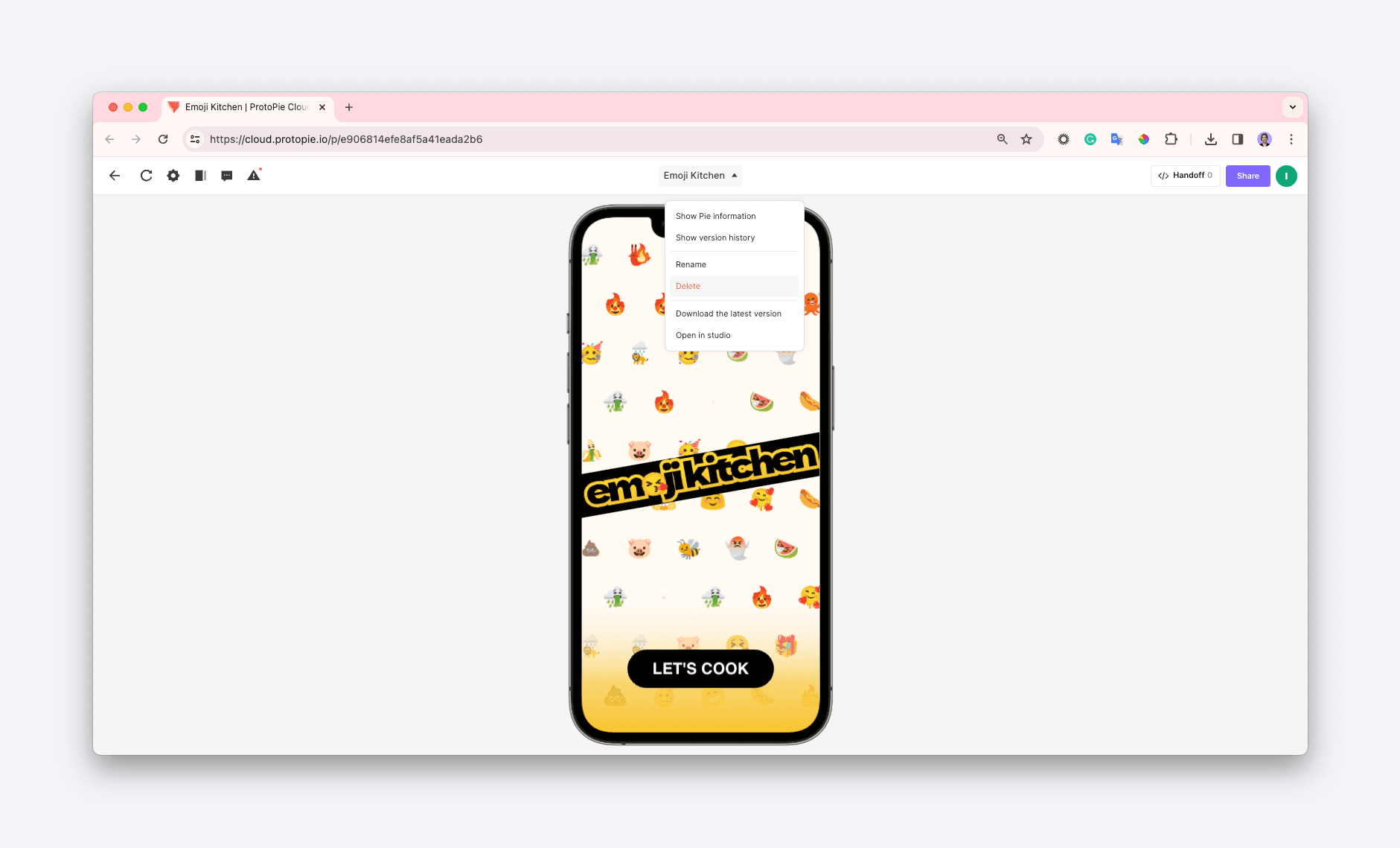

{'_type': 'localeString', 'en': 'open cloud stored pie in studio'}

Uploading Prototypes

Follow these steps to upload prototypes to the cloud from ProtoPie Studio:

  1. Click the Cloud button in the upper right corner.

  • If you are on the Pro or Enterprise plan, you can choose between saving prototypes locally (“On My Computer”) or uploading them to the cloud (“Save”).

  • If you are on the Free or Basic plan, you can save your prototypes only on the cloud.
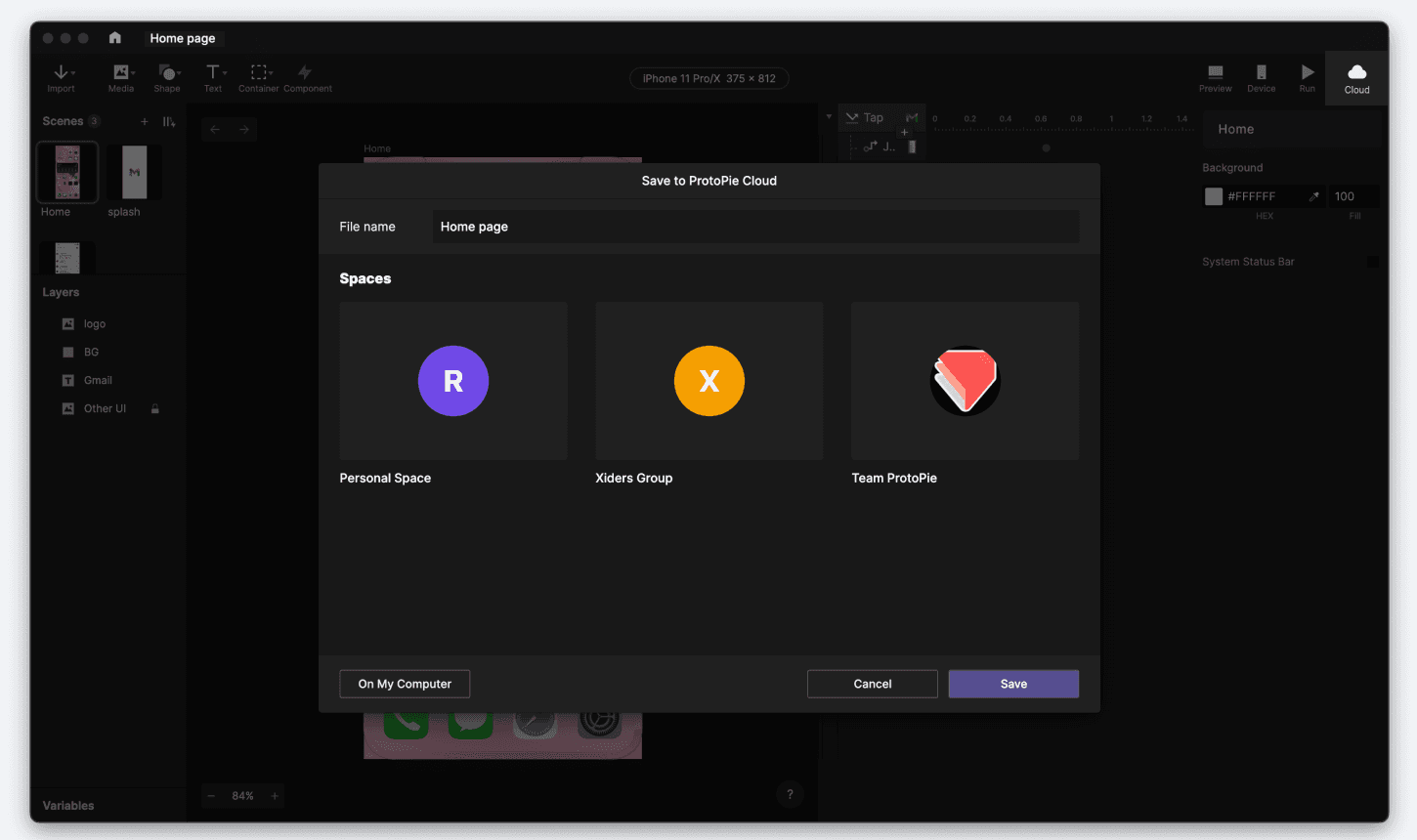

{'_type': 'localeString', 'en': 'upload-pies-to-cloud'}
  1. Choose where the file should be saved (personal or team space). If you choose a team space, select the right project and click Save.
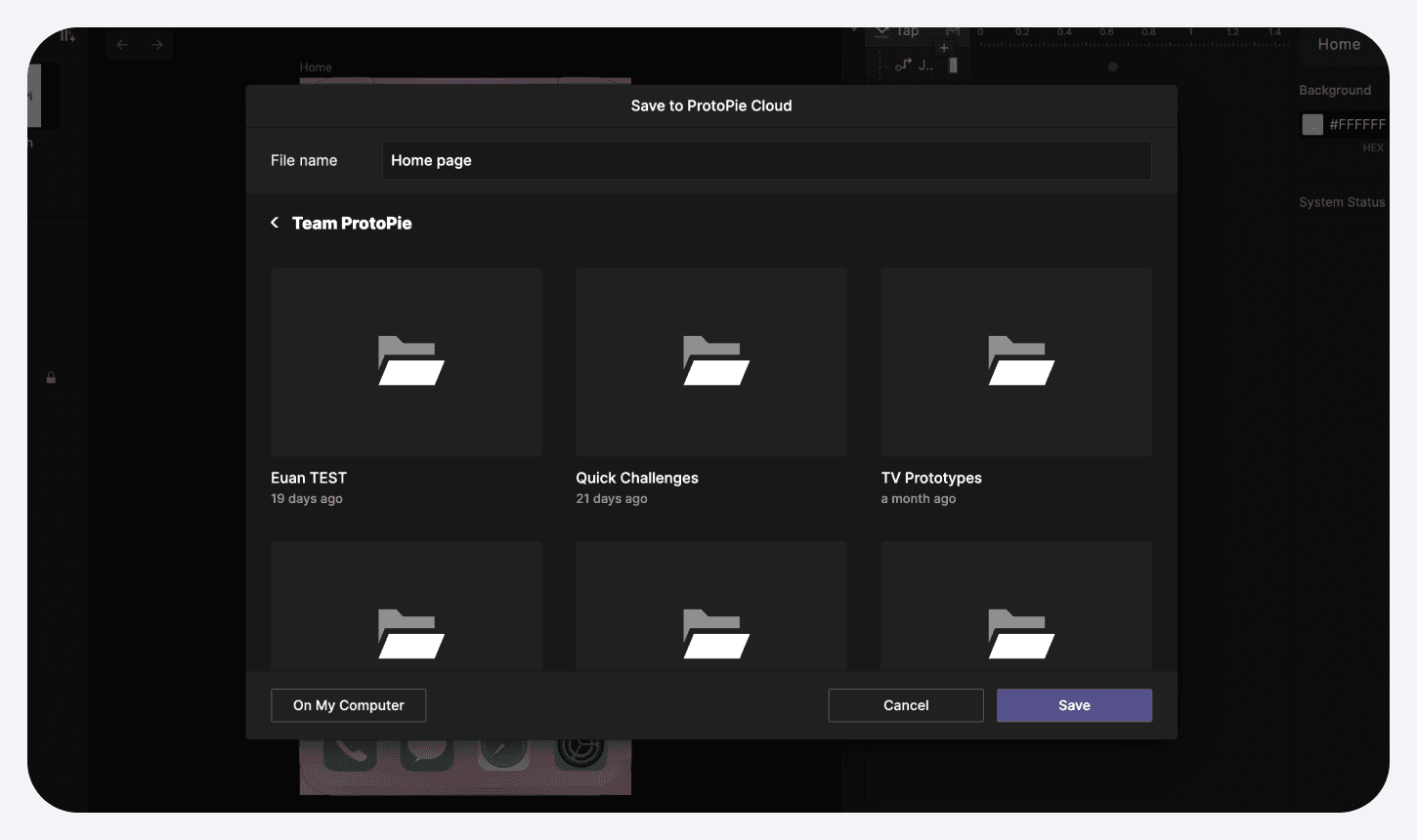
{'_type': 'localeString', 'en': 'choose-project-space-cloud'}
  1. The prototype's cloud link will display once the upload is complete. Click on the link to preview your prototype on the cloud or select Copy to share the link with others. You can customize the sharing options on the prototype's page.

Learn more about sharing prototypes.
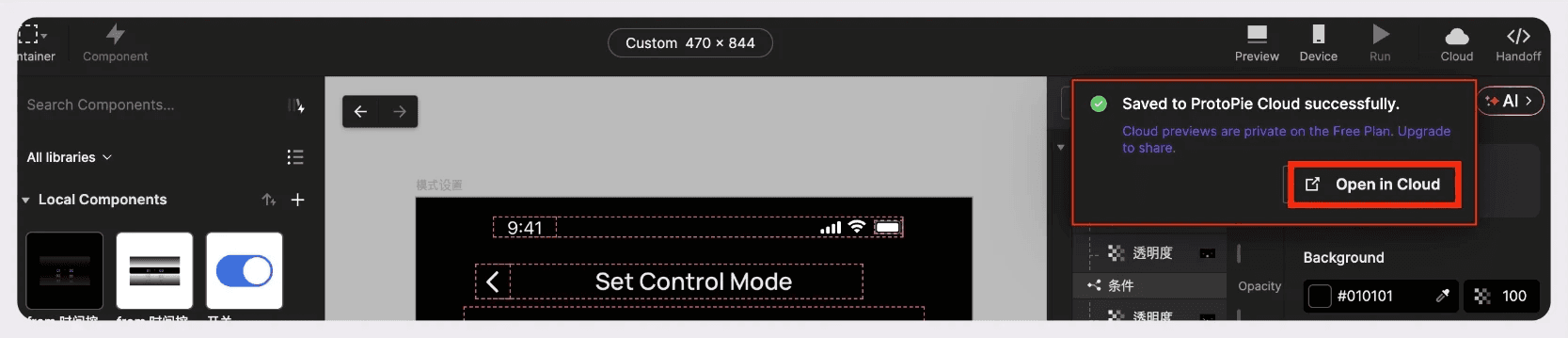

{'_type': 'localeString', 'en': 'copy-pie-link'}

You can upload your Pie as a new prototype or overwrite an existing one.
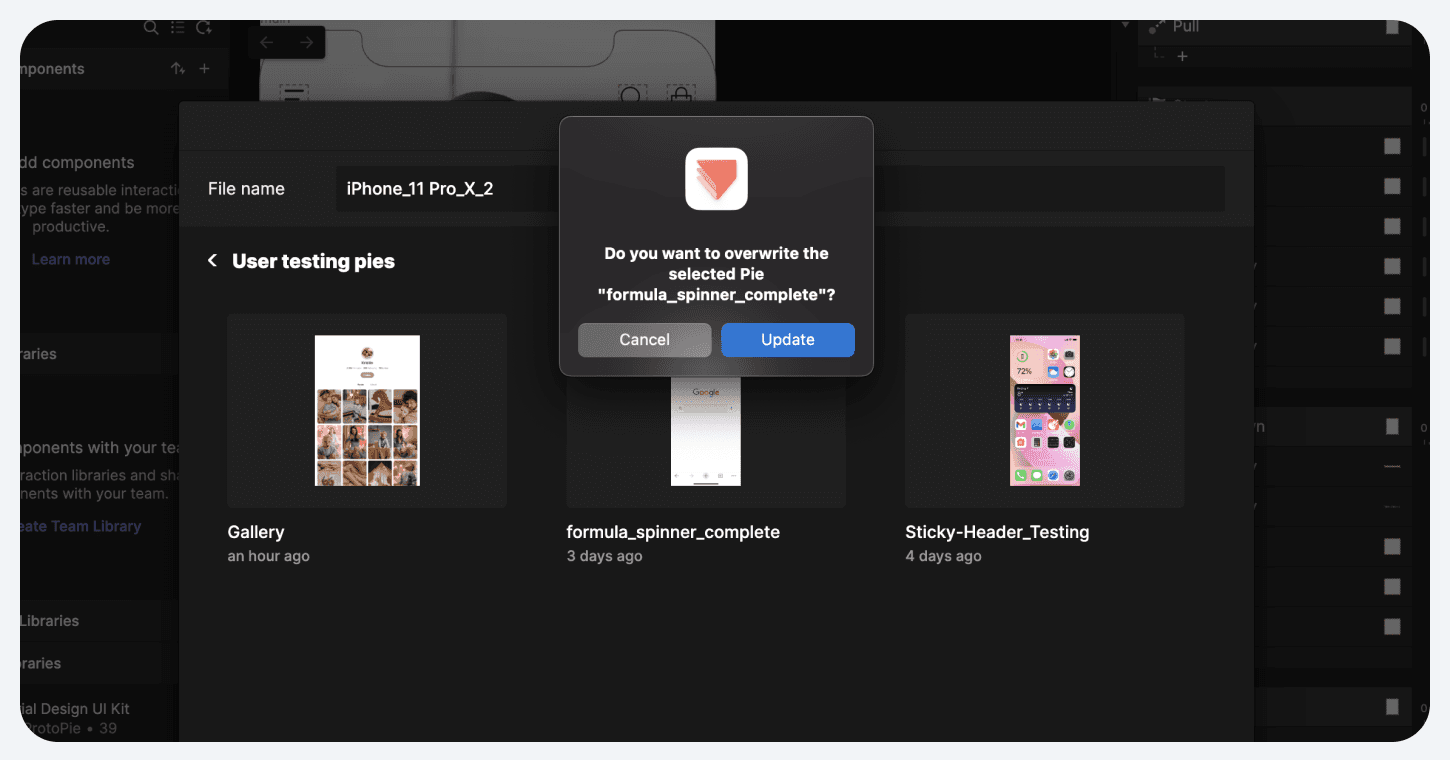
{'_type': 'localeString', 'en': 'overwrite-pie-in-the-cloud'}

Uploading a Cloud Pie through the Cloud button automatically overwrites the version stored on the cloud. To overwrite another prototype on the cloud click on Save As under File and choose the prototype that needs to be overwritten.

To remove Pie files from your Recent Pies list, click Remove from recent. To delete prototypes from your computer or the cloud, click Delete.
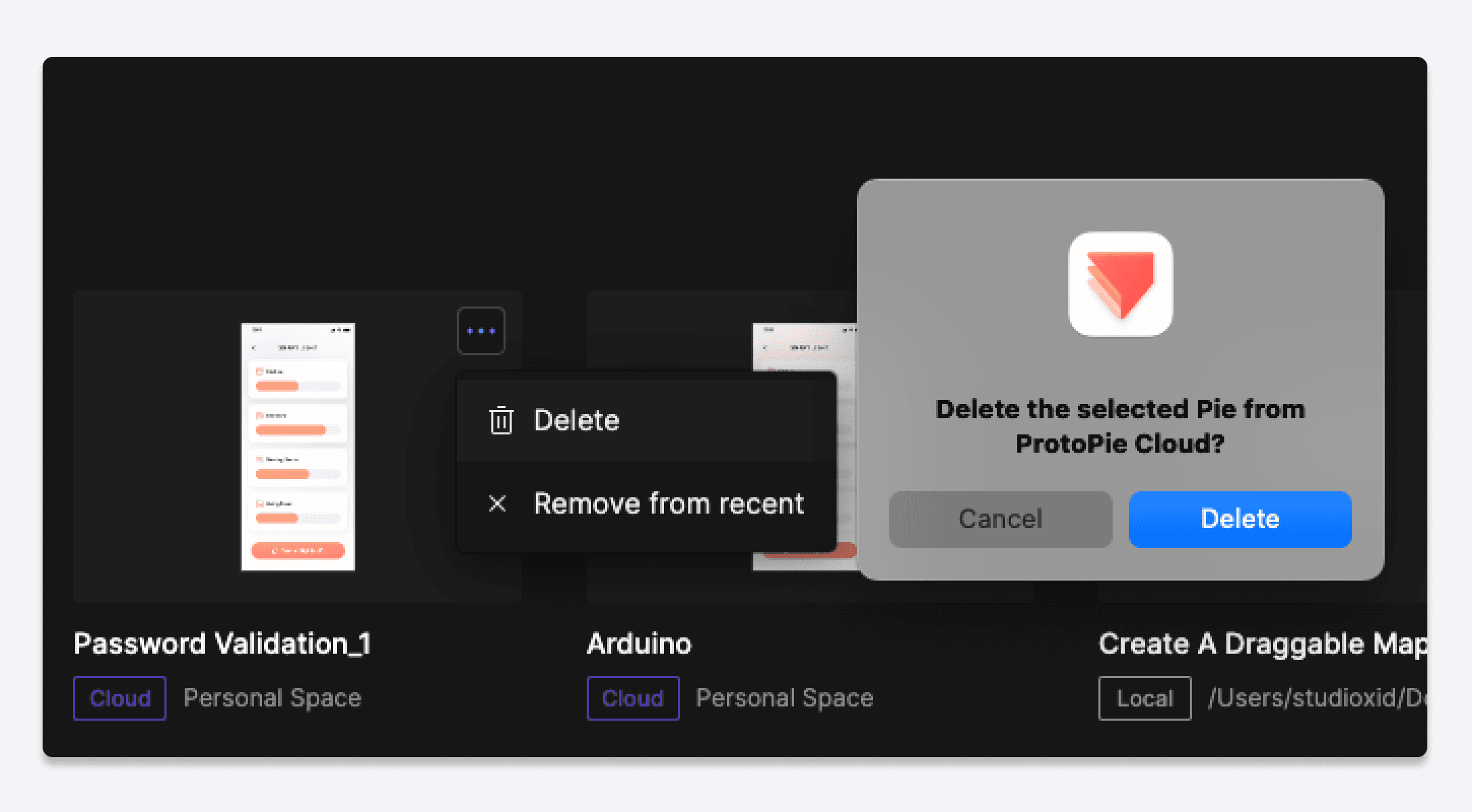

{'_type': 'localeString', 'en': 'removing-pie-from-recent-files'}

You can manage the information and settings of a prototype on the cloud, including renaming it and restoring older versions.

Learn more about managing prototypes.

Testing Prototypes

You can easily share the link of your prototype with stakeholders. Depending on the prototype, they can preview it on web browsers or the Player app. Learn more about sharing prototypes.

Testing Prototypes on Desktop Browsers

ProtoPie cloud links can be opened on any major desktop browser (e.g. Google, Safari, Firefox). There are various display options you can choose from. Open View Options to customize how your prototype is displayed on web browsers.
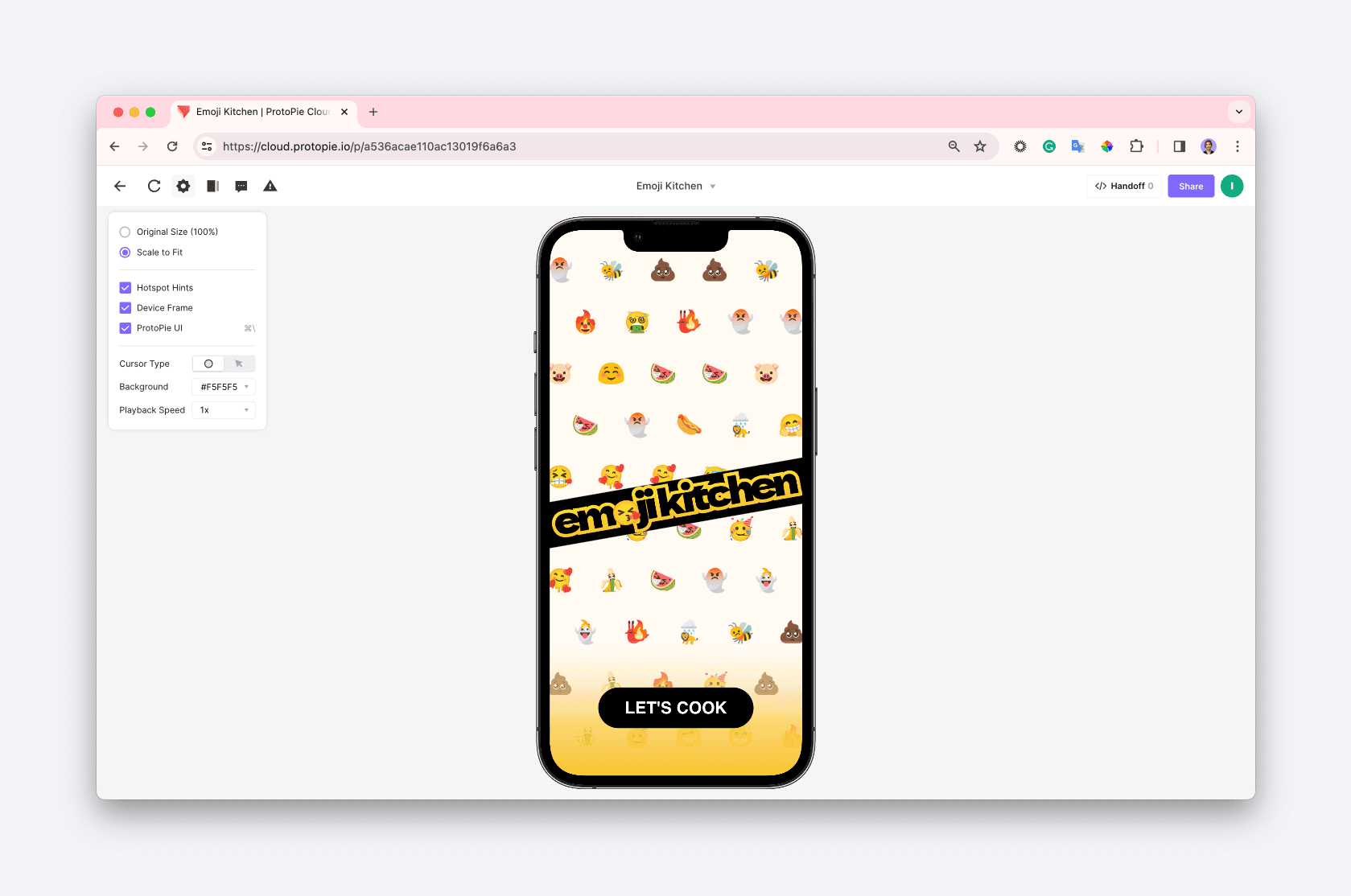

{'_type': 'localeString', 'en': 'pie-page-cloud'}

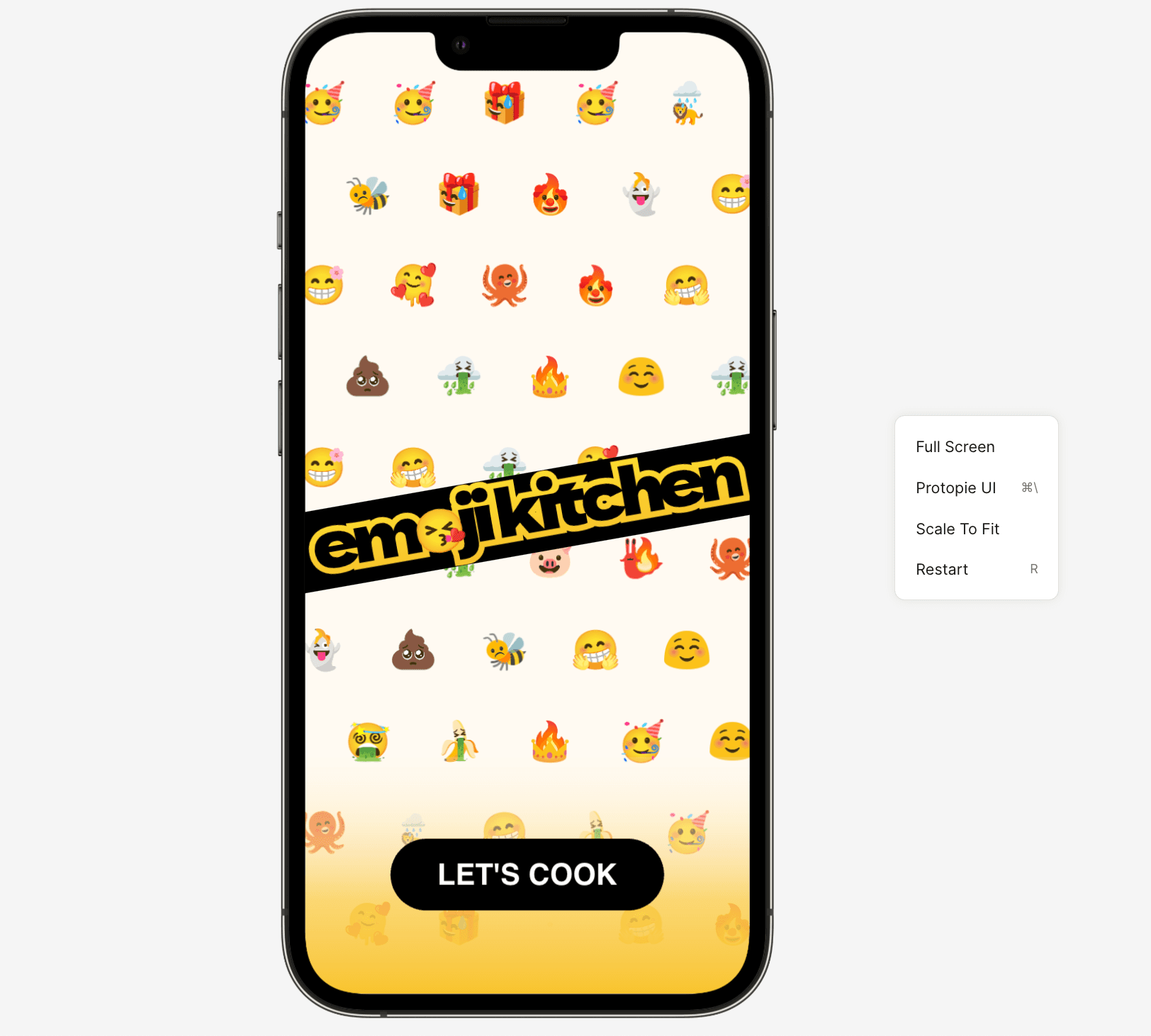
Right-click the background of the prototype page to access additional options, such as Full Screen, ProtoPie UI, and so on.

{'_type': 'localeString', 'en': 'additional-view-options-in-the-cloud'}

Testing Prototypes on Mobile Browsers

You can conveniently open and test prototypes directly on mobile browsers. However, it's important to note there are certain limitations when using prototypes in mobile browsers.

The input layer, sensor-related interactions, and voice prototyping features may not function as intended. We recommend opening the prototype in ProtoPie Player to use these features fully.

Testing Prototypes with ProtoPie Player

ProtoPie Player is a powerful companion app designed to test and run prototypes on iOS, iPadOS, and Android devices.

ProtoPie Player ensures a seamless testing experience, free from the limitations that may arise when using mobile or web browsers.

To experience the full range of features and functionalities of your prototype, open ProtoPie Player and scan the QR code of the prototype stored in the cloud. Alternatively, you can enter the shareable link provided. Learn more about testing prototypes in ProtoPie Player.